Out-of-Stock Products Last on Shopify: The Bury, Hide, or Keep Decision
Shopify can't put sold-out products last in collections. We checked 77 collection pages from 31 brands and turned it into a bury, hide, or keep guide.
Key takeaways
Five days before Black Friday, we opened 77 collection pages on the US storefronts of 31 well-known Shopify brands.
On 44 of them, the live page showed products in Shopify's own collection order, and 12 of those had a product nobody could buy in the first 24 tiles.
Those sold-out products were rarely at the bottom: 28 of the 32 sold-out tiles sat above products people could still buy.
Shopify has put sold-out products last in its search results since 2019. Collections still have no equivalent: as of November 2026, none of the native collection sort options looks at availability.
On its own, Shopify can't put sold-out products last in a collection. Your native choices are to hide them with an inventory condition, move them down by hand in a manually sorted collection, or use an app or Flow that rewrites a manual order.
Burying them automatically while keeping your best-selling logic takes sort logic that reads availability.
Why do sold-out products sit at the top of Shopify collections?
Every native collection sort ranks products on something other than stock. Most relevant and Best selling reward the products that sell the most, which are often the first to sell out.
Manual orders keep yesterday's hero in its slot. Nothing in the sort pushes a product down when its last unit sells, and four mechanisms keep it up there:
- There is no availability sort. Shopify's collection sort options are Most relevant, Best selling, title, price, date created, and manual. The Admin API's CollectionSortOrder enum lists nine values, and none of them is about stock.
- Sales-based sorts reward sell-outs. Best selling counts all-time orders, Most relevant is based on sales performance, and new collections default to Most relevant. Our read: a product that sold out on Black Friday keeps the rank that sold it out.
- Manual orders freeze. In a manually sorted collection, moving a sold-out product to the end is a manual step. Moving it back after the restock is another one.
- Availability is product-level. Shopify counts a product as available if any one variant is, so a style with only XXS left still ranks as normal. Apparel teams tell us "in stock" is too coarse for broken size runs.
In our data, 23 of the 28 collections that followed Shopify's own order and held any sold-out product mixed them in among in-stock ones. Only five kept every sold-out product at the end.
The extreme case was one fashion collection where four of the first five tiles were a sold-out collaboration drop, and nine of the first 24 were sold out.
How often do sold-out products outrank in-stock ones? We checked 77 collection pages
On about one in four first pages that follow Shopify's own order. On November 22, 2026, we checked collection pages on the US storefronts of 31 well-known Shopify brands.
Of the 44 pages showing Shopify's own collection order, from 20 of those brands, 12 had a sold-out product in the first 24 tiles, and 28 of those 32 sold-out tiles sat above a product shoppers could still buy.
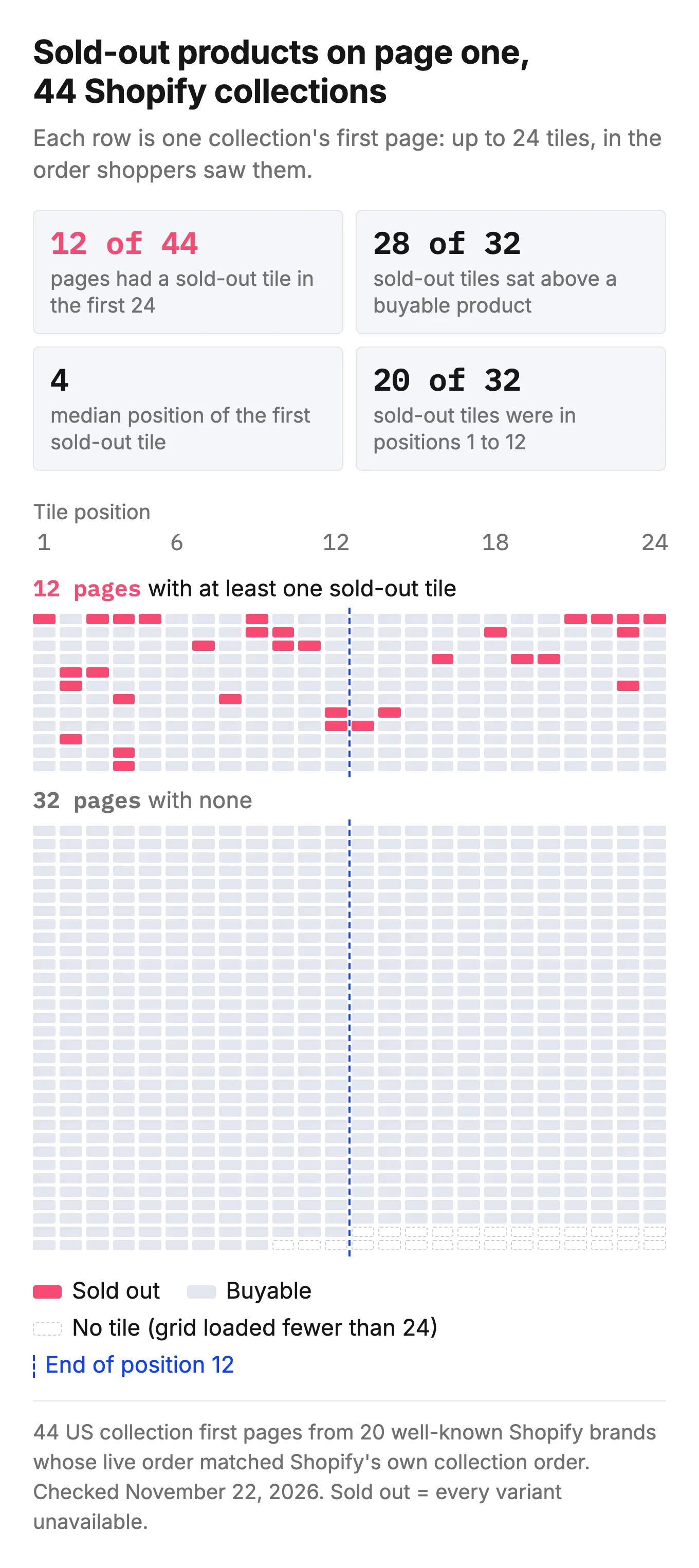
The problem is concentrated. Sold-out products took 32 of 1,029 tiles (3.1%) on those 44 pages, yet they showed up on 27% of the pages. When they did, they sat near the top:
- The first sold-out tile sat at a median position of 4.
- 11 of the 12 affected pages had one in the first 12 tiles.
- 20 of the 32 sold-out tiles were in positions 1 to 12.
Deeper in the same collections, sold-out products stayed mixed in: 131 of 338 (39%) sat above at least one in-stock product.
Pages with their own ordering logic looked different.
On the 32 collections whose live page didn't follow Shopify's order, Shopify's own order would have put sold-out products in 61 of 768 first-page slots (7.9%).
The live pages showed 0.8% to 1.8% sold out, about a quarter or less. The range is wide because 130 of those tiles weren't in Shopify's feed, so we couldn't check their stock.
We can't tell which app, theme logic, or personalization did the reordering. But brands that layer their own ordering on top of Shopify's tend to keep sold-out products off page one.
Sell-outs themselves were common. About one in eight unique products (1,575 of 12,956) in the 88 collection feeds we pulled was fully sold out that day, and 62 of the 88 collections had at least one.
By vertical, beauty was hit hardest: 9 of 20 beauty first pages showed a sold-out product, against 2 of 13 in fashion and 1 of 11 in home. The groups are small.
Fashion's low number comes from our definition: "sold out" means every variant is unavailable, so a style with one size left counts as in stock. We didn't measure size breaks, the bigger fashion problem.
All of this is the pre-sale baseline, from five days before Black Friday.
How we checked
- What we checked: the first page of 77 collection pages on the US storefronts of 31 well-known Shopify fashion, beauty, and home brands, on November 22, 2026.
- What counts as sold out: every size and color of the product unavailable, using Shopify's own availability flag.
- How we checked order: we compared Shopify's collection feed with the live page in a browser, and counted positions only on the 44 pages where they matched.
- What it can't tell you: how many sales these pages lost, or what happens to size-level stock.
Can Shopify put out-of-stock products last on its own?
Not in a collection. Shopify puts fully sold-out products at the end of search results by default, and Search and Discovery lets you show, hide, or place them last, but only in search.
For collections, the native options either hide sold-out products or need a manually sorted collection that something keeps reordering.
Merchants have asked for more since December 2020, when one Shopify Community post asked about "keeping sold items in the collections but moving them underneath the in stock items rather than having to do it manually."
The ask hasn't gone away. A 2025 thread came from a merchant with about 20,000 products, roughly 1,000 of which change stock state every day.
Here's how the native options compare:
- Collection sort options
- Buries or hides: neither
- Keeps automatic sorting: n/a
- The catch: no availability sort exists
- Manual sort, Move > To the end
- Buries or hides: buries
- Keeps automatic sorting: no
- The catch: by hand, after every sell-out
- Automated condition "Inventory stock is greater than 0"
- Buries or hides: hides
- Keeps automatic sorting: yes
- The catch: product-level, so one size left keeps it in; needs "match all conditions"; products return on restock
- Flow template "Publish and unpublish products based on inventory level"
- Buries or hides: hides everywhere
- Keeps automatic sorting: yes
- The catch: takes products off the store, not only the grid
- Flow "Product variant out of stock" trigger, or a push-down app, calling the reorder API
- Buries or hides: buries
- Keeps automatic sorting: no, the collection must be manually sorted
- The catch: up to 250 moves per request; fails on any automatic sort
- Unlisted product status
- Buries or hides: hides
- Keeps automatic sorting: n/a
- The catch: adds noindex and nofollow, drops the page from the sitemap
- Theme (Liquid) code
- Buries or hides: buries within one page only
- Keeps automatic sorting: yes
- The catch: each page of products is sorted on its own
- Search and Discovery out-of-stock setting
- Buries or hides: buries or hides, in search only
- Keeps automatic sorting: n/a
- The catch: doesn't touch collection order
- Availability filter
- Buries or hides: shopper's choice
- Keeps automatic sorting: yes
- The catch: opt-in; the default order is unchanged
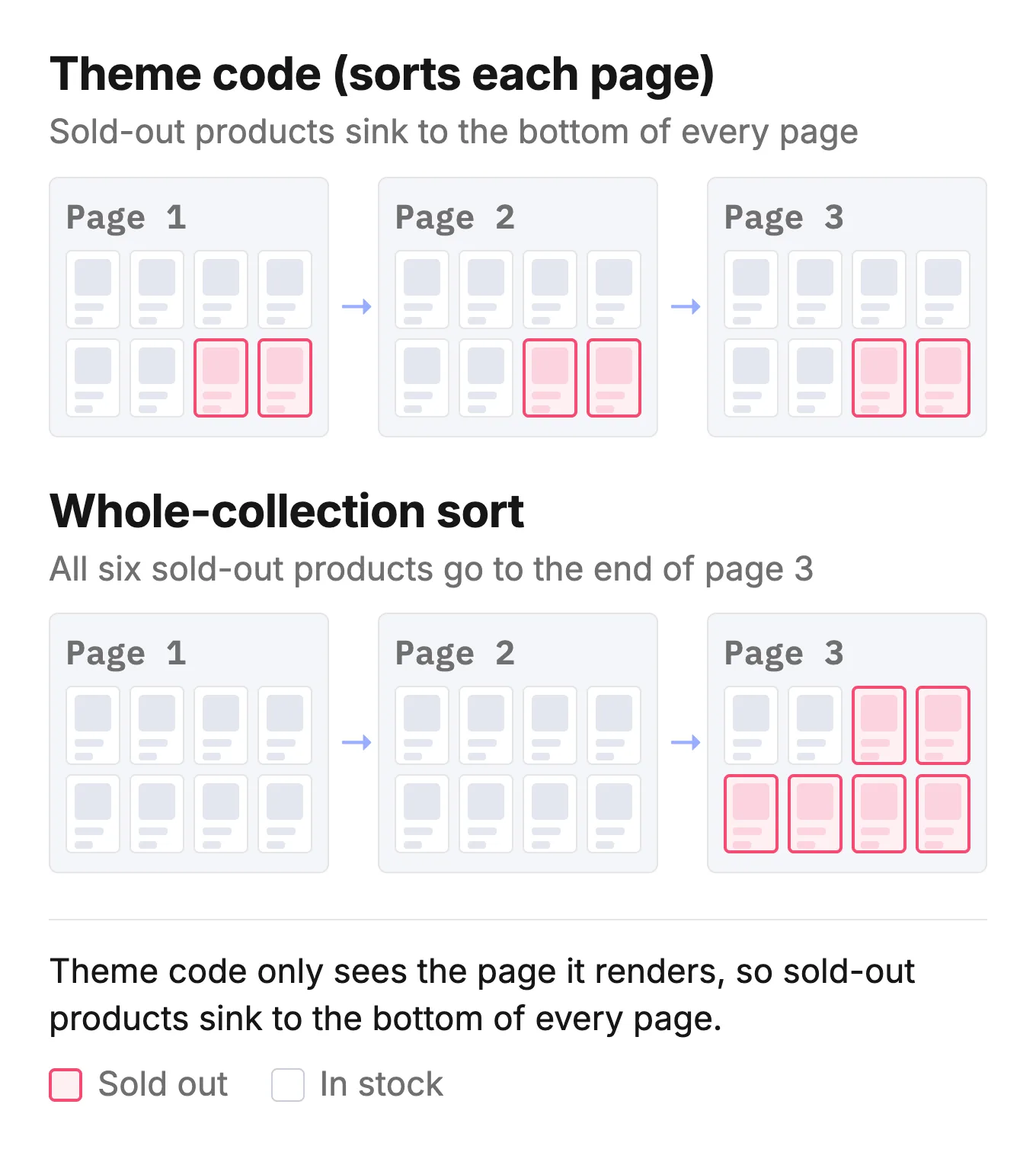
The diagram uses a 24-product collection over three pages, with six products sold out.
Why theme code fails. Shopify hands your theme one page of products at a time. Any "sold-out last" code reorders that page only, so page 2 starts with in-stock products again and sold-out ones sit at the bottom of every page.
A merchant who tried a custom-code fix saw exactly that: "in page 1 in stock then out of stock, in page 2 in stock and out of stock products, and so on."
A developer on Shopify's dev forum summed it up: "Most Liquid-based solutions only work when the product count is under 250 (no pagination)."
What push-down apps trade away. Apps and Flow workflows can only reorder a manually sorted collection, up to 250 moves per request.
Our inference: once a collection is set to Manual, it stops re-ranking in-stock products by Best selling or Most relevant, unless the app rebuilds that ranking itself.
Why Search and Discovery doesn't help here. One merchant on Shopify Community already uses the app to sort storefront search this way and found it doesn't "affect the Collections sort order." The setting is search-only.
If you'd rather let shoppers choose, an in-stock filter is opt-in and leaves your default order alone.
Should you hide, bury, or keep sold-out products?
Bury by default. Keep a temporarily sold-out product in the collection, push it below everything in stock, and keep its page live so it can sell again after the restock.
Hide it only where an unbuyable product does harm, such as recommendation blocks, and retire products that are gone for good with a redirect.
The decision, by product situation:
- Sold out, restock expected
- Collection pages: bury below in-stock
- Product page: keep live, mark out of stock, offer back-in-stock or alternatives
- Why: Google says keep the page and mark it out of stock; Merchant Center says don't delete items you'll sell again; in Baymard's product-page testing, 30% of users told only "out of stock" were likely to leave the site
- Some sizes or colors sold out
- Collection pages: keep, but rank broken size runs below full runs if you can
- Product page: keep live
- Why: Shopify counts it as in stock; apparel teams call "in stock" too coarse (more on fashion sell-through and size breaks)
- Pre-order, back-order, or set to continue selling
- Collection pages: keep in place
- Product page: keep live, label the ship date
- Why: it can be bought; Shopify doesn't treat it as out of stock
- Gone for good, clear replacement
- Collection pages: hide (remove from collections)
- Product page: 301 redirect to the replacement
- Why: Google's guidance for a page with a clear replacement
- Gone for good, no replacement
- Collection pages: hide
- Product page: mark discontinued while it has search value, then return 404 or 410
- Why: Google's guidance for removed pages; structured data has a Discontinued value
- Launch or hero product with a waitlist
- Collection pages: keep visible on purpose, for a short window
- Product page: keep live with the waitlist
- Why: lab evidence that visible sold-out items can push shoppers toward available options (Journal of Retailing; Journal of Consumer Psychology)
- Recommendations and "you might also like"
- Collection pages: hide
- Product page: n/a
- Why: nobody should be recommended something they can't buy; Shopify's own recommendations already skip sold-out products, and our Blocks have a Hide out of stock safeguard
- Search results
- Collection pages: bury, but let an exact-name search still find it
- Product page: n/a
- Why: Shopify's native search already does this by default
Most of what ranks for this question sells hiding: Shopify's own Help page first, then a page of hide-out-of-stock apps.
Burying keeps the product page and its internal links. Hiding is right for a smaller set of products than those results suggest.
Two caveats. The waitlist studies are lab and physical-shelf experiments from 2009, not ecommerce collection tests, so treat "keep it visible" as a time-boxed choice.
Baymard's 30% comes from moderated testing of product pages. Use it for what happens after a shopper taps a sold-out tile; it says nothing about collection pages.
Will hiding sold-out products hurt your SEO?
It depends on how you hide them. Removing a product from collection grids keeps its page live but cuts internal links Google uses to find it.
Shopify's Unlisted status adds noindex and nofollow and drops the page from your sitemap. For items that will restock, Google says to keep the page and mark it out of stock.
Run these six checks before you hide anything:
- Keep restocking products published. The Flow unpublish template and the Unlisted status both take the page out of discovery. If a product must leave the grids, our hidden content rules keep its page published and reachable at its URL.
- Keep the page substantive. A page that returns 200 but reads like an error is what Google calls a soft 404, and those pages are excluded from Search. Show the product, its state, and alternatives.
- Mark availability in your structured data and feeds. Google's merchant listing markup has distinct values for out of stock, sold out, back order, pre-order, and discontinued. In Merchant Center, set out of stock instead of deleting.
- Retire with the right status code. With a clear replacement, use a 301 redirect. With no replacement, return 404 or 410.
- Keep buried products crawlable. Google's crawlers don't click "load more" buttons, so products deep in a collection need real paginated links or a sitemap.
- Don't trust the forum advice on unlisting. Merchants on r/shopify say unlisting won't hurt SEO because the direct link still works. Shopify's developer docs say Unlisted adds noindex and nofollow to the page.
How do you bury sold-out products automatically and keep your sort?
Make availability the first rule of the sort itself. In our sort orders, you either put an In stock tier first or add a priority rule that demotes products with zero inventory.
In-stock products keep their normal ranking, sold-out products drop below all of them, and a restocked product moves back up without a manual step.
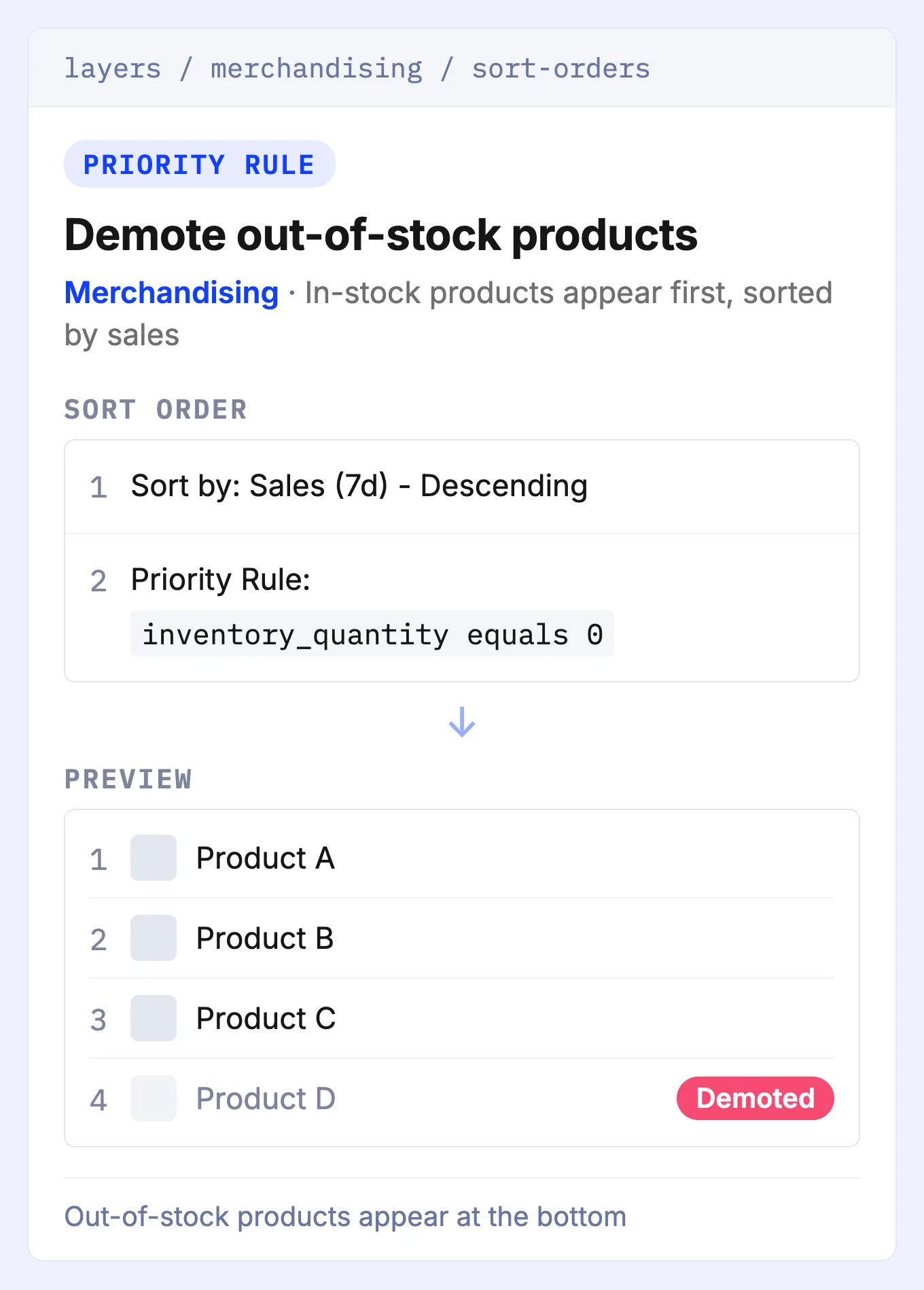
Set it up in this order:
- Put availability first. In Merchandising, make a yes/no In stock row the first row of the sort, sorted descending, or add the priority rule
inventory_quantity equals 0as a demote. Either way, your usual metric still ranks products inside each tier. - Keep what you already promote. Promote and demote rules stack: featured first, in-stock in the middle by sales, sold-out last. Priority rules are hard overrides; soft boosts never lift a product above demoted, out-of-stock products.
- Decide what "in stock" means for you. Your inventory location scope sets which locations count; a variant with stock in scope, or set to keep selling, is available. You can also demote products out of stock at specific locations, useful for multi-market merchandising.
- Catch untracked inventory. Variants with tracking turned off always count as available. To send them down too, add
inventory_quantity is nullas a demote rule. - Handle pins. With Delete Pins on Sell Out on, sold-out pins are removed, and a restocked product needs re-pinning by hand. A pin with an availability condition switches off while the product is sold out and returns on restock.
- Handle color and size tiles. With variant breakouts, out-of-stock handling applies per tile, so sold-out colors drop to the end while in-stock colors stay. More on variant tiles.
- Preview, then test. The sort preview badges each product with the rule that moved it, including a red Demoted badge. Sort order experiments (Beta as of November 2026) split traffic between your current sort and the in-stock-first version.
To blend margin or stock depth into the in-stock tier, see custom ranking objectives.
Search is a separate switch. A store setting shows sold-out products in search, hides them, or puts them at the end, and it doesn't change collection pages.
In AI Search, you can also use soft demotion, so a highly relevant sold-out product can resist demotion when shoppers search for it by name. Inventory is one of our search ranking signals.
When Shopify reports an inventory change, it usually reaches our index within seconds under normal load. Cached collection results refresh within roughly 30 to 90 seconds. Neither window is guaranteed.
Sort logic that reads live data changes how collection pages behave day to day. David Cost, VP of eCommerce and Digital at Rainbow Shops, described it this way:
We can dynamically change the sort order on all of our collection pages daily. So those collection pages look different every day. They reflect what people are buying in a fairly short time.
We've written more on sort logic that reacts to stock levels.
If you'd rather see it on your own store, book a demo and we'll show your top collections sorted with sold-out products last.
What should you check on your collections after Black Friday?
Open your ten busiest collections on your phone the way a shopper would and count sold-out tiles in the first 24.
Then check every pinned or featured product, decide hide, bury, or keep for each sold-out item, and confirm the pages you keep are live and marked out of stock:
- Count. In a private window on your phone, look at the first 24 tiles of your ten busiest collections. Our benchmark: before the sale, 12 of the 44 first pages that followed Shopify's own order had a sold-out tile.
- Pins and featured slots. Sold-out pins and hand-placed products are the fastest win, because nothing moves them when stock runs out.
- Broken size runs. Look at the first row for styles with only fringe sizes left.
- Decide per product. Use the bury, hide, or keep list above.
- Run the SEO check. Do it before you unlist anything.
- Pre-orders. Make sure they stayed visible and labeled with a ship date.
- Set a rule before the January sale. Turn these decisions into sort logic so you don't repeat this after every drop. Start with why best-selling sort keeps sold-out winners on top.
In a demo, we'll show your own top collections with sold-out products sorted last.
FAQs
1. Can Shopify sort out-of-stock products last in a collection? No. As of November 2026, none of Shopify's collection sort options looks at stock. You can hide sold-out products with an inventory condition, move them to the end by hand, or use an app or Flow that rewrites a manual collection.
2. Does the Search and Discovery app move sold-out products down in collections? No. Its out-of-stock setting shows, hides, or places unavailable products last in search results and predictive search, not on collection pages. Shopify has put fully sold-out products at the end of search results by default since 2019.
3. Will hiding out-of-stock products hurt SEO on Shopify? It can. Removing them from collection grids cuts internal links that help Google find them, and the Unlisted status adds noindex and nofollow. For products that will restock, Google recommends keeping the page and marking it out of stock.
4. Why does my theme code only move sold-out products to the bottom of each page? Because Liquid works on one page of products at a time. Any sort you write in Liquid reorders that page only, so page 2 starts with in-stock products again. Fixing the whole collection means changing the order before the page is built.
5. What is the difference between hiding and unlisting a sold-out product on Shopify? Hiding usually means an "Inventory stock is greater than 0" collection condition, which drops the product from that collection until it restocks. Unlisting is a product status: the page gets noindex and nofollow and leaves your sitemap, though a direct link still works.
6. Should products that are sold out in some sizes go to the bottom too? Not automatically. Shopify counts a product as available if any one variant is, so a style with one size left stays in stock. Rank broken size runs below full runs instead. With our variant breakouts, sold-out color tiles can drop on their own.
Written by

Lukas Tanasiuk
Co-Founder and CRO, Layers
Lukas Tanasiuk is Co-Founder and CRO of Layers, the enterprise search and merchandising platform built exclusively for Shopify Plus. He has spent over a decade in Shopify ecommerce and CRO, and speaks with enterprise merchants about search and merchandising every week.
View all articlesRelated articles
More reading on search, merchandising, and product discovery.
The Complete Guide to Collection Page Merchandising on Shopify Plus
The median brand in our 18-brand benchmark publishes about 220 collections. Here is how to set the default, pins, campaigns, and proof for each one.
Lukas Tanasiuk
Nov 24, 2026 · 22 min read
How to Sort Products by Margin Without Sacrificing Discovery
Best-selling sort optimizes for units, not profit. Learn when margin-weighted sorting helps, when it hurts discovery, and how to find the right balance on Shopify Plus.

Jake Casto
Jul 10, 2026 · 11 min read
What is Searchandising? The Line between Search and Merchandising
Search finds the products; searchandising picks which show first. A job-by-job map of the boundary, with what Shopify's native tools let you change today.
Jake Casto
Nov 24, 2026 · 17 min read